
Sign up, turn on Face ID, add it to your Home Screen
One form, one tap for Face ID, and the app sits on your phone like any other.
- Who
- Owner
- When
- Once, on your own phone
- Takes
- 2 minutes
There is nothing to download from the App Store. The app runs in your phone's browser and, once added to the Home Screen, opens full-screen with its own icon like any other app.
- 1
Open the sign-up link on your own phone (the QR at the booth, or the Sign up button on nogag.ph). It opens ai.nogag.ph/join.
- 2
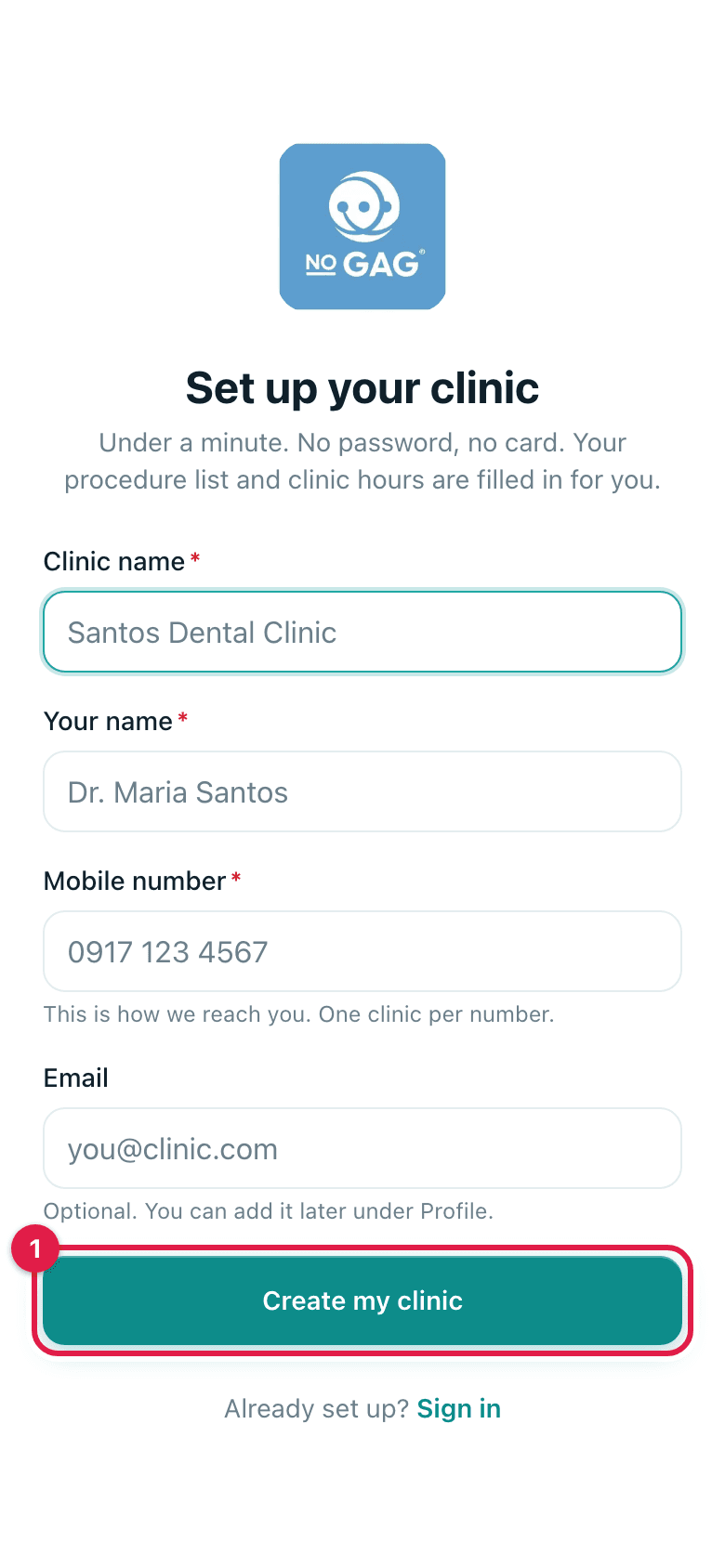
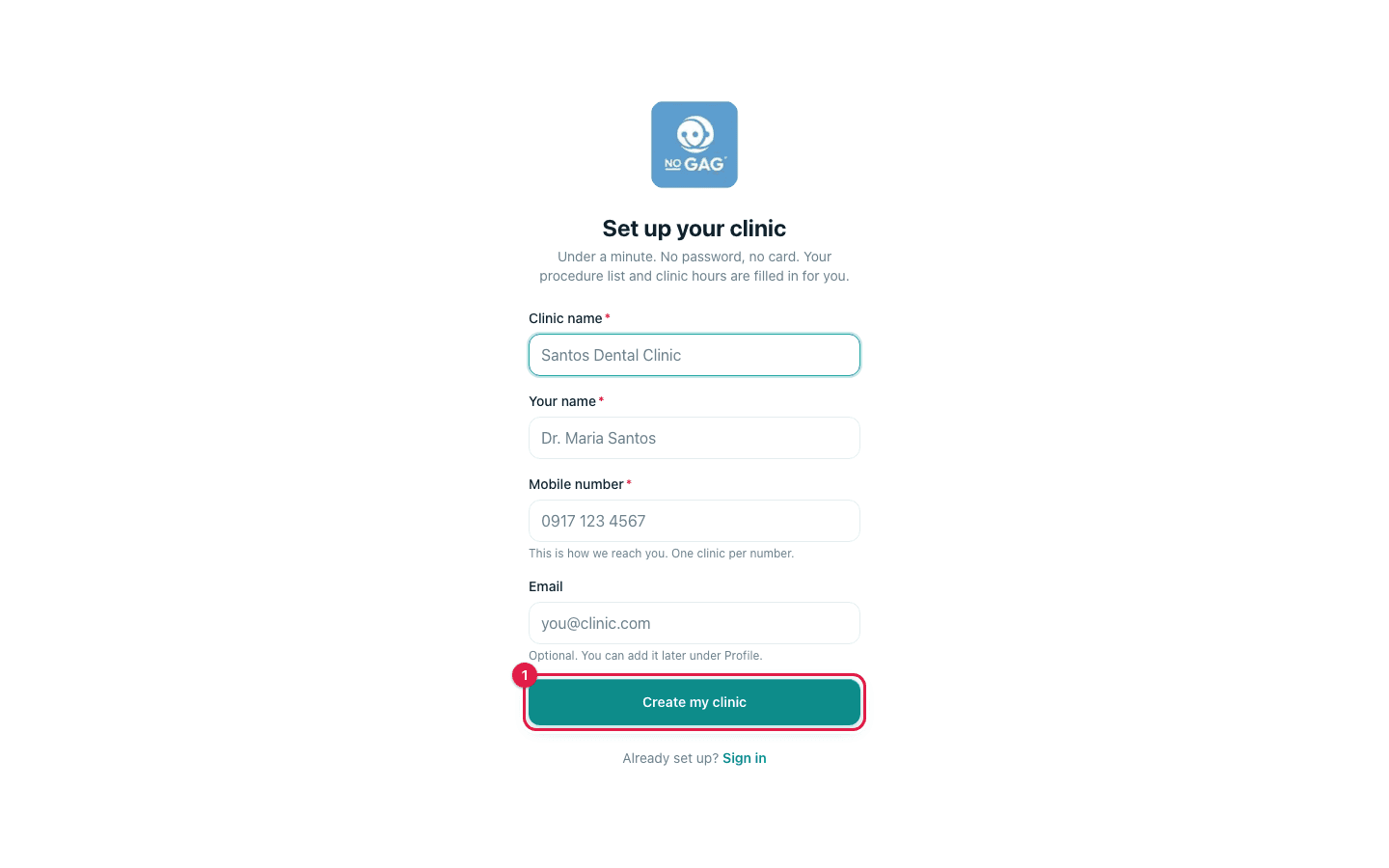
Type the clinic name, your name, and your mobile number. Email is optional. Tap Create my clinic.
Your mobile number is your login. One clinic per number.
- 3
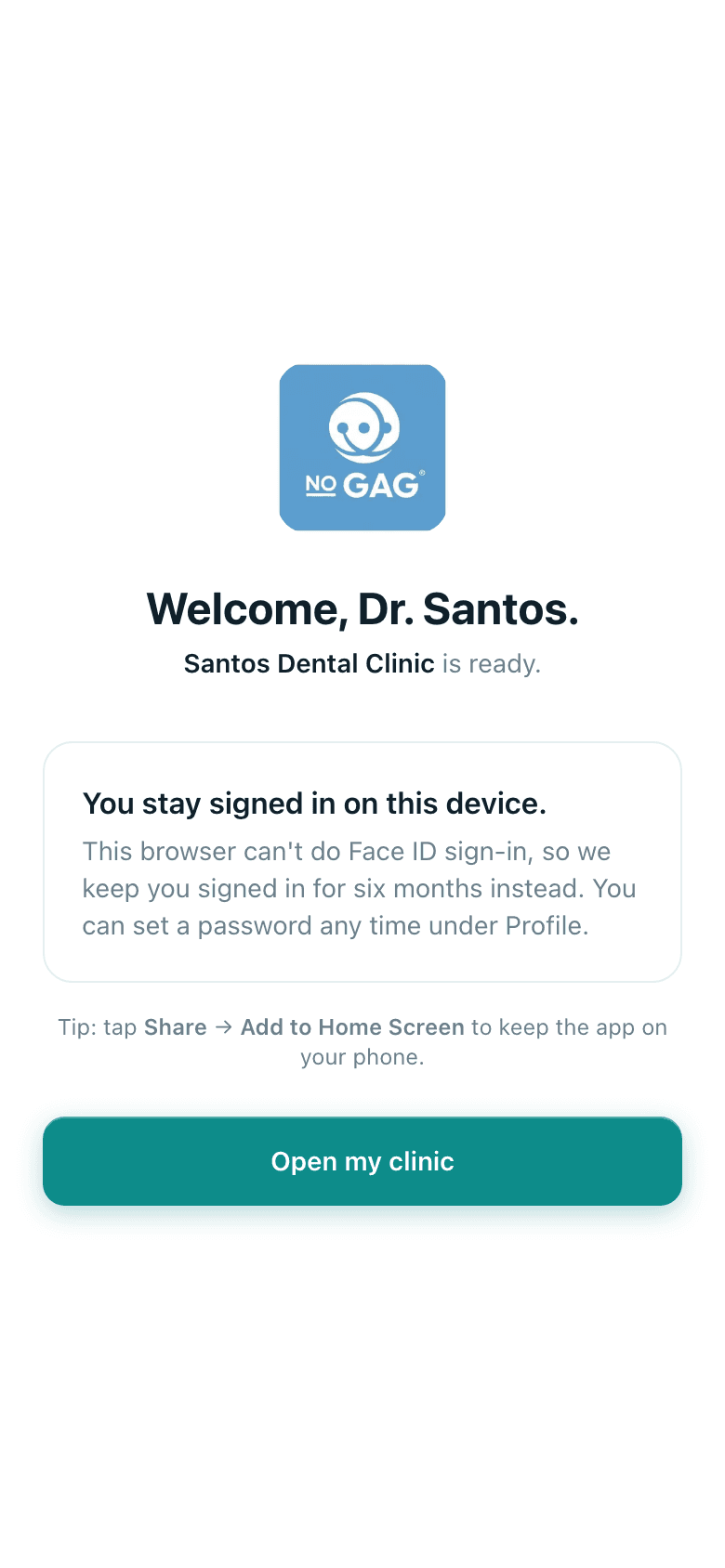
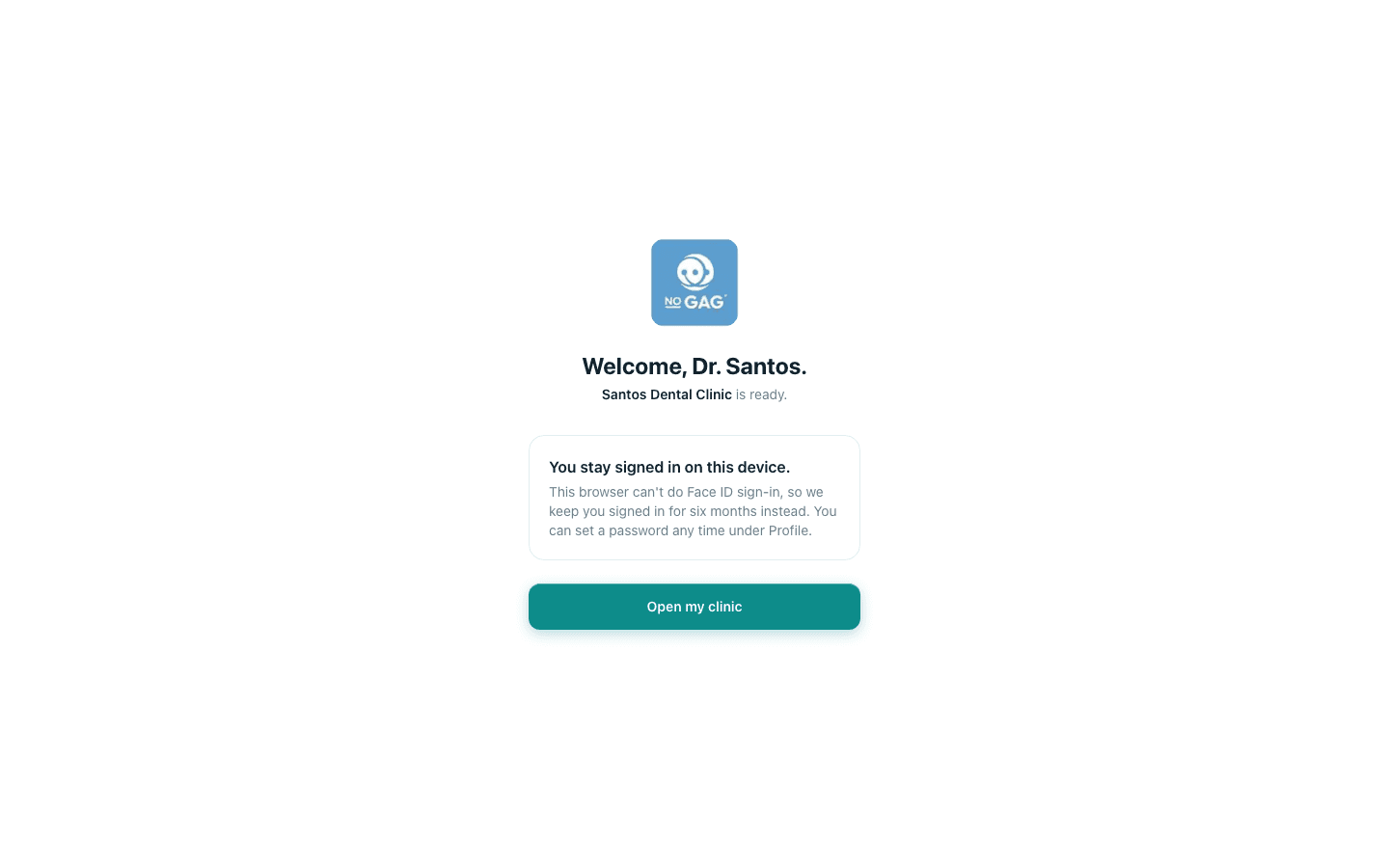
On the Welcome screen tap Turn on Face ID and let the phone do its thing. From now on the app opens with a glance, no password.
- 4
Tap the phone's Share button (the square with the arrow), then Add to Home Screen, then Add. On Android: the browser menu, then Add to Home screen.
- 5
Tap Open my clinic. You land on Home with a three-step card telling you what to do first.
Ask the assistant
Answers from this guide, in plain English. Usually under a minute.It only knows what is in this guide and never sees patient records. Not answered? Search or message the J.A.H team.