
Signing in on a phone or a laptop
Face ID on the phone, password on the laptop, and you stay signed in for months.
You only sign in once per device. The app keeps you signed in for six months and quietly extends that every time you use it, so on your own phone you should almost never see the sign-in screen.
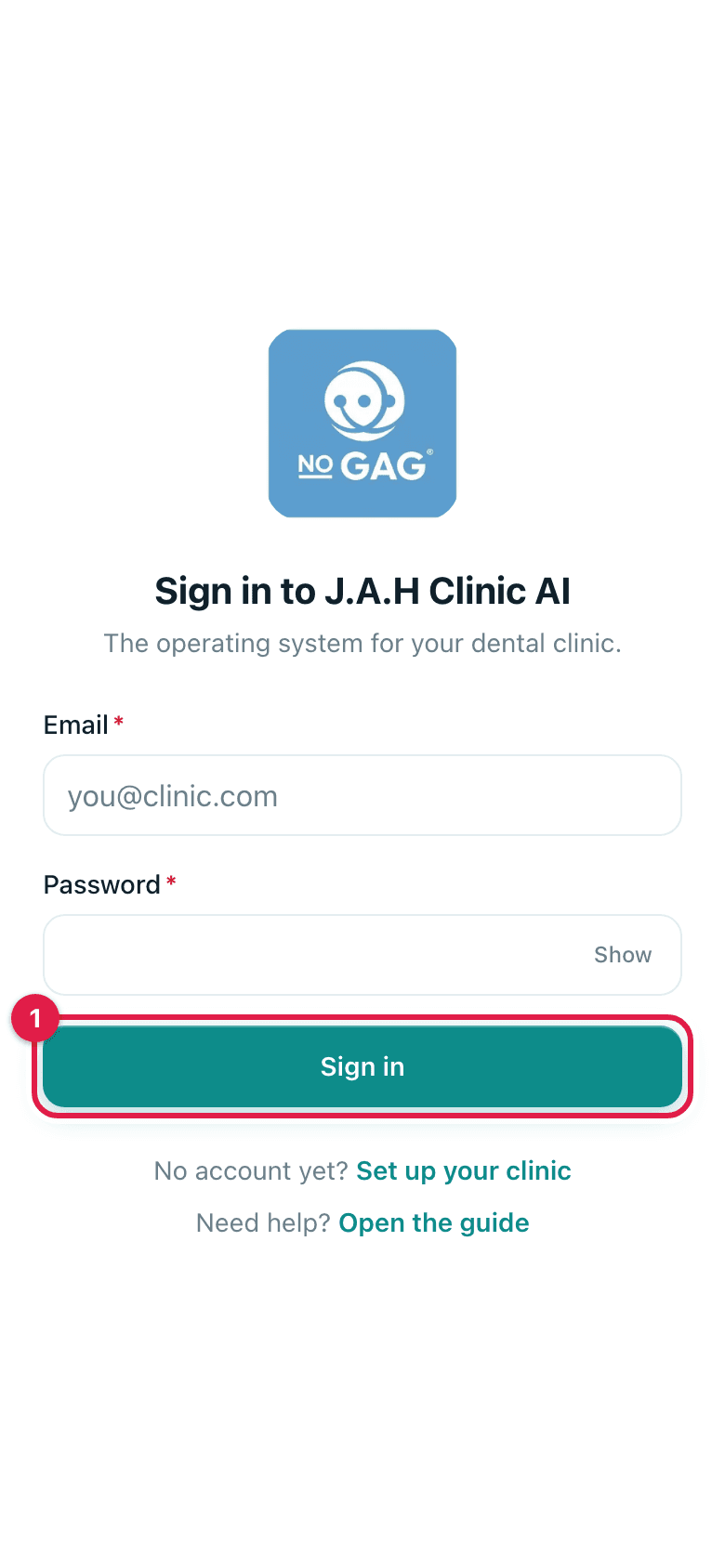
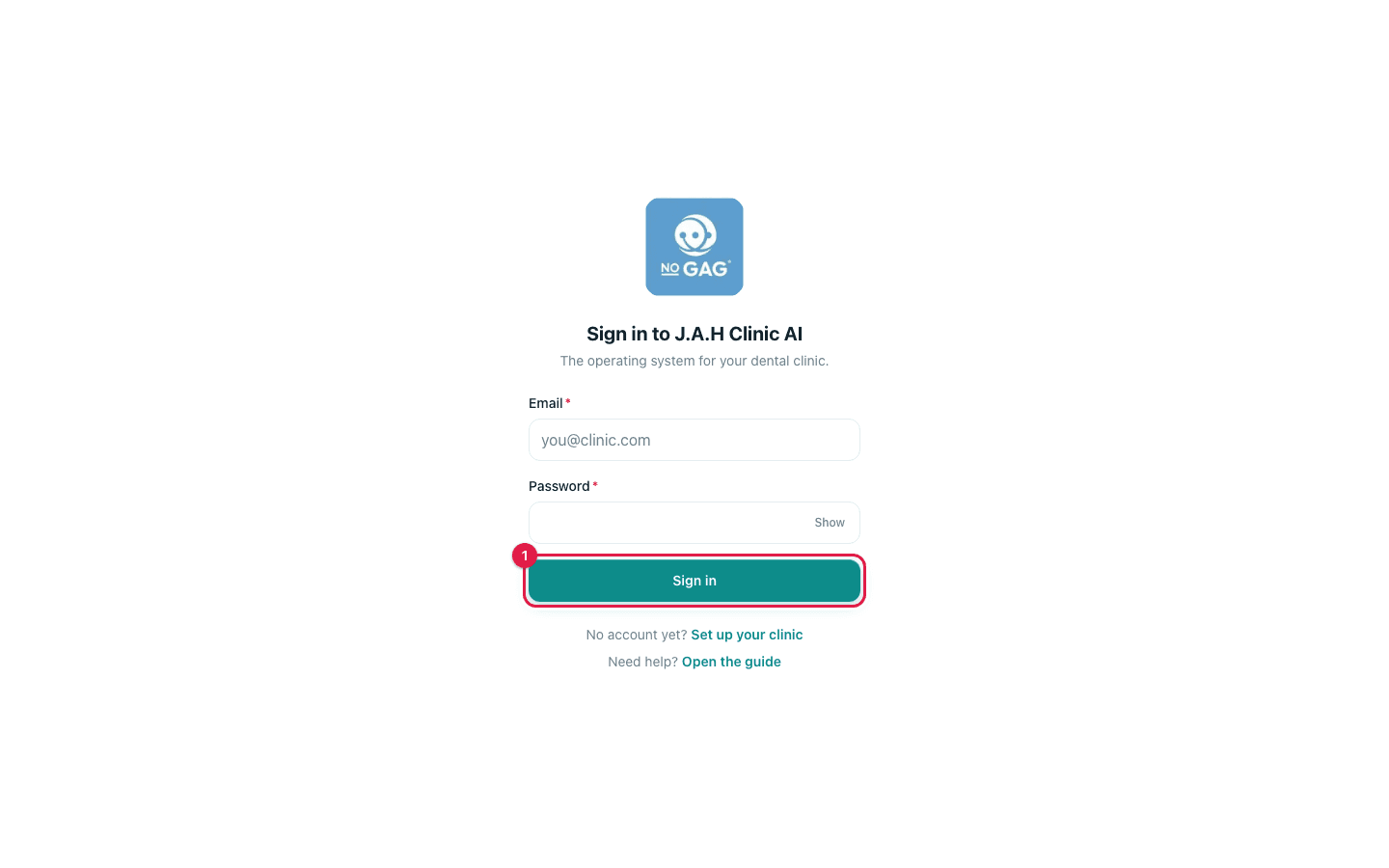
- 1
Go to ai.nogag.ph (or tap the icon on your Home Screen).
- 2
On a phone with Face ID set up: the Face ID prompt appears by itself. Look at the phone and you are in. If it does not appear, tap Sign in with Face ID.
- 3
On a laptop, or a phone without Face ID: type your email and password, then tap Sign in.
Ask the assistant
Answers from this guide, in plain English. Usually under a minute.It only knows what is in this guide and never sees patient records. Not answered? Search or message the J.A.H team.